RSA Product Set: SecurID
RSA Product/ Service Type: Authentication Manager
RSA Version/Condition: 8.x
This articles provides steps to recover when system passwords are not known or are lost for RSA Authentication Manager 8.x all current versions up to AM 8.8
If you know your Operations Console Admin Username and Password, and you can access AM appliance Linux with the rsaadmin account, you can create a temporary SuperAdmin account and password so that you can access
- enable SSH access if needed
- SSH to Linux with a PuTTy or other client using the rsaadmin account credentials
- cd /opt/rsa/am/utils
- ./rsautil restore-admin -u <temporary admin user name>
- Use this <temporary admin user name> account to logon to Security Console and reset your regular SuperAdmin account password(s)
- The <temporary admin user name> will expire in 24 hours
Authentication Manager 8.x uses multiple passwords for different functions, losing some passwords has a more critical effect than others.
- The initial Security Console internal super admin username and password. There is no default username and password combination for this account, as it is chosen by the admin who does the initial Quick Setup. If the password for this super admin user is lost, there is no way to find it except by trial and error. Also, if the default password policy settings are used, this password expires every 90 days.
Remediation
- Another Security Console admin can reset the unknown super admin password.
- If the operating system password and Operations Console administrator's username and password are all known, a temporary super admin account can be created.
To create a temporary super admin user
- Ensure that SSH access is enabled by logging in to the Operations Console and navigating to Administration > Operating System Access and checking the option to enable SSH on eth0.
- Start an SSH session to the Authentication Manager primary.
- Navigate to /opt/rsa/am/utils.
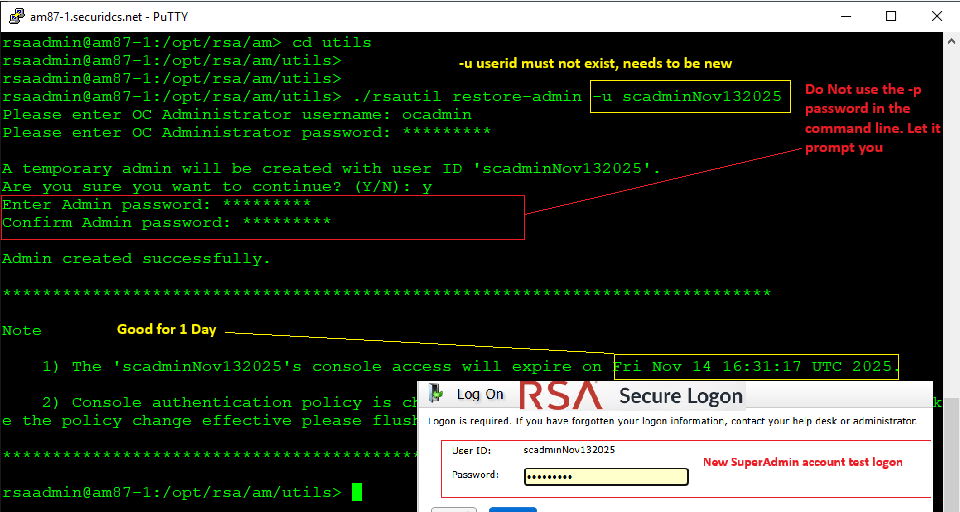
- Run the ./rsautil restore-admin -u <temporary admin user name> CLU to create the temporary admin. In the example below, the user is named scadminNov132025 - Support does not recommend using the -p <temporary admin password> switch on the command line
- When prompted enter the Operations Console administrator's credentials.
- Enter y when prompted.
- Note that:
- The temporary administrator's console access expires in 24 hours.
- NOTE: TempAdminname must be unique, so call it something like scadminNov132025
- Security Console authentication policy is changed to RSA_Password/LDAP_Password.
login as: rsaadmin
Using keyboard-interactive authentication.
Password:
Last login: Fri Dec 16 10:15:55 2016 from jumphost.vcloud.local
RSA Authentication Manager Installation Directory: /opt/rsa/am
rsaadmin@am81p:~> cd /opt/rsa/am/utils
rsaadmin@am81p:/opt/rsa/am/utils> ./rsautil restore-admin -u scadminNov132025
Please enter OC Administrator username: <enter Operations Console admin user name>
Please enter OC Administrator password: <enter Operations Console admin password>
Continue Y/N ?
TempAdm
A temporary admin will be created with user ID 'tempadmin'.
Are you sure you want to continue? (Y/N): y
Admin created successfully.
*****************************************************************************
- Now launch the Security Console and login as tempadmin with the password defined in step 4. WIth access to the Security Console, this temp admin can change the password for another super admin that might have been locked out of the console.
To change an Operations Console administrator's password
- Log in to the Security Console as a super admin user.
- Select Administration > Manage OC Administrators.
- From the list, locate the Operations Console administrator who lost their password and click Change Password.
- This interface can also be used to create a new Operations Console administrator by clicking on Add New.
Authentication Manager 8.x uses multiple passwords for different functions, losing some passwords has a more critical effect than others.
The most common passwords used are below.
- Quick Setup Access Code. This is generated by the Authentication Manager appliance during the initial deployment and displayed on the operating system console screen. It is required to perform the Quick Setup process. If it has been lost before Quick Setup has been run, restart the appliance to show the code on the operating system console screen. This can be with vSphere or Hypervisior with the virtual appliance, or with a directly-connected keyboard and monitor with the hardware appliance. You may need to use the <backspace> key to get past the screensaver. Once Quick Setup has been run, the Quick Setup Access Code is no longer displayed, and is no longer needed.
Initial login if Quick Setup has not been done
Before Quick Setup is complete, the SUSE Linux operating system has an initial login of rsaadmin for the user ID and a default password of rsaadmin. During the Quick Setup process, the admin is required to choose a new password for the rsaadmin login. If this password is lost, there is no way to find an unknown password, except by trial and error. Since various database maintenance activities require SSH access that prompt for these credentials, it is imperitive to store them in a secure location.
Backup password
Running a backup through the Operations Console, under Maintenance, requires the administrator to enter a password. The backup file is encrypted using this password. If this password is lost, there is no way to locate the password, except by trial and error. If the password is not found, the backup will be unusable. Another backup where the password is known is still usable, and new backups can be created.
Diagnostic troubleshooting password
Creating diagnostic troubleshooting files through the Operations Console (Administration > Download Troubleshooting Files) requires the administrator to create a password to encrypt the zip file. If this password is lost, there is no way to recover the password and the troubleshooting files will be unusable. A new troubleshooting file can be created.



