Idera ER/Studio Team Server - My Page SSO Configuration Using OIDC - RSA Ready Implementation Guide
Configure RSA Cloud Authentication Service
Perform these steps to configure RSA Cloud Authentication Service using My Page SSO (OIDC).Procedure
- Sign in to RSA Cloud Administration Console.
- Enable SSO on the My Page portal by accessing the RSA Cloud Administration Console > Access > My Page > Single Sign-On (SSO).
- Navigate to Applications > My Applications > Add an Application, and click Create From Template.
- On the Choose Connector Template page, click Select for OIDC.
- On the Basic Information page, enter a name for the configuration in the Name field and click Next Step.
- Choose the required option on the Authentication page and click Next Step.
- Under Connection Profile, provide the following details:
- The Authorization Server URL will be auto populated. This URL is used on the Idera ER/Studio Team Server side.
- The Redirect URL is to be obtained from Idera ER/Studio Team Server and follows the format: http(s)://<Server IP or FQDN>:<Port>/azureSSO/rsacode (for example, https://QE-01:8443/azureSSO/rsacode).
- The 'Port' is obtained during the initial installation of the product.
- Please note that 'azureSSO' serves as a placeholder in Idera ER/Studio Team Server.
- Provide a Client ID.
- Select Client Authentication Method as 'CLIENT_SECRET_BASIC'.
- Provide a Client Secret or generate one.
- Provide the scope as 'openid' (Scopes should be added beforehand. See Notes section).
- Provide the claims as 'email' and 'username' (Claims should be added beforehand. See Notes section).
- Click Save and Finish.
Notes
Completing the scope requirement is an essential part of configuration. If you do not include openid as a scope, issues will occur during the authentication process of Idera ER/Studio Team Server.
- In the RSA Cloud Administration Console navigate to Access > OIDC Settings.
- On the Scopes page, type openid in the available field, and then click Save Settings.
Note: It is mandatory to add openid as scope.
- On the Claims page, add the claim name. It is important that the name you use matches the one used in the Idera ER/Studio Team Server Configurator page.
- In the Select Source field, choose one of the following options:
- Identity Source: This dynamic field requires a user-provided value during SSO login. If the user is not listed in the Idera ER/Studio Team Server identity source, the system checks the user’s email address to either create a new account or authenticate an existing one.
- Constant: This static field uses a fixed value during SSO login. If the user is not listed in the Idera ER/Studio Team Server identity source, the system checks the user’s email address to either create a new account or authenticate an existing one.
- The behavior of Value field depends on the Select Source options:
- Constant displays an input box for entering strings.
- Identity Source shows a dropdown list with values from the existing identity source.
- Click Save Settings.
- Publish your changes.
Note: If you are configuring HTTPS in Idera ER/Studio Team Server, do not use localhost. While RSA does support localhost, some errors can occur. Use machine IP or domain name instead.
Configure Idera ER/Studio Team Server
Perform these steps to configure Idera ER/Studio Team ServerProcedure
- Log in to the Idera ER/Studio Team Server admin console.
- An administrator must first activate Single Sign-On (SSO). To do this, navigate to the Single Sign-On page in the left-side menu. Check the "Use SSO" checkbox to enable SSO. Once this is done, additional options for selecting and configuring SSO will become available.
- Select RSA Secure ID from the drop-down list under the Select SSO Provider options.
- The appropriate provider will appear.
- The following fields are available when configuring SSO with RSA:
- DomainId: Authorization Server Issuer URL provided by RSA. This is the highlighted portion of the URL.
- ClientId: Use the Client ID from the RSA connector configuration.
- Client Secret: Use the Client Secret from the RSA connector configuration.
- Claim: Email: This field must match the entry in the RSA console. Otherwise, you will receive an error when attempting to log in.
- Claim: User Name: This field must match the entry in the RSA console. Otherwise, you will receive an error when attempting to log in.
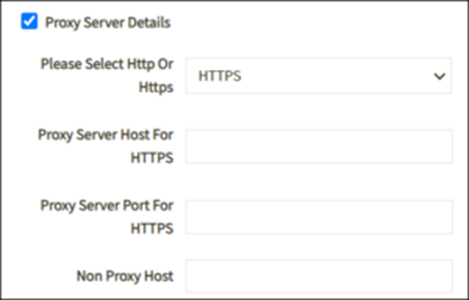
- Proxy Server Details: Check this box if your machine uses a proxy server. Server details will be auto-filled. To modify any of these details, use the admin account.
- DomainId: Authorization Server Issuer URL provided by RSA. This is the highlighted portion of the URL.
Note: Most users utilize a proxy server, which may be configured with either HTTP or HTTPS protocols. The following details pertain to the HTTPS configuration of the proxy server. You have the option to select the protocol that aligns with your proxy server’s configuration, whether it is HTTP or HTTPS.
- After completing all necessary fields, click Test to verify your entries. All responses to these tests are recorded in the sso.log file.
- If all details are correct, the Update button will be enabled. Clicking this button encrypts the information and saves it in a property file, after which Team Server restarts. Once the restart is complete, the Login by SSO button will be enabled on the Login page.
Notes
- If you interchange the values entered in the Claim: Email and Claim: User Name fields, you can still log in through RSA, but the values will appear interchanged in your profile under People.
- If your ClientId or Client Secret is incorrect, or if your redirect URL fails, you will not receive any logs. Instead, an RSA page will display the error message: Invalid request.
- Team Server includes a Test button to help you avoid connection problems. When you click Test, Team Server performs the following checks:
- Network Reachability: Checks if the SSO provider is reachable over the network.
- If this check fails, ensure that:
- Your Team Server has access to the internet.
- There are no firewalls blocking HTTP traffic for your Team Server.
- The settings are correctly configured in your proxy server (if applicable).
- If this check fails, ensure that:
- Proxy Server Reachability: Checks whether the SSO provider is reachable through a proxy server (if applicable).
- If this check fails, verify that the proxy server settings are correct.
- Check that the Client ID and Secret credentials are accepted by the SSO provider.
- If this check fails, verify the following:
- The details are correct (involve your SSO Identity Provider administrator).
- The configuration settings match those in the SSO Portal.
- The Client ID and Client Secret are obtained from the corresponding app registration.
- The redirect URIs are correct.
- You can obtain a metadata file from the application registration pages of the Identity Provider portal. Check the metadata file and compare it with any other working SSO applications on the client side.
- If this check fails, verify the following:
- Network Reachability: Checks if the SSO provider is reachable over the network.
Return to Idera ER/Studio Team Server - RSA Ready Implementation Guide



