Salesforce - My Page SSO Configuration Using OIDC - RSA Ready Implementation Guide
Configure RSA Cloud Authentication Service
Perform these steps to configure RSA Cloud Authentication Service using My Page SSO.Procedure
- Sign into RSA Cloud Administration Console.
- Enable SSO on My Page by accessing the RSA Cloud Administration Console > Access > My Page > Single Sign-On (SSO).
- Enable two-factor authentication by using Password and Access Policy.
- Navigate to Applications > My ApplicationsàAdd an application and click Create From Template.
- Click Select against OIDC.
- On the Basic Information page, enter the name for the application in the Name field.
- Click Next Step.
- Choose the required option on the Authentication page and click Next Step.
- Under Connection Profile, provide the following details:
-
- Authorization server Issuer URL is auto-populated. This URL is used in Salesforce to form the Callback URL, Token endpoint URL, and Authorize endpoint URL.
- The Redirect URL is obtained from Salesforce (see the next section).
- Copy the Redirect URL to the Connection URL.
- Provide a Client ID.
- Select a Client Authentication Method.
- Provide a client secret or generate it.
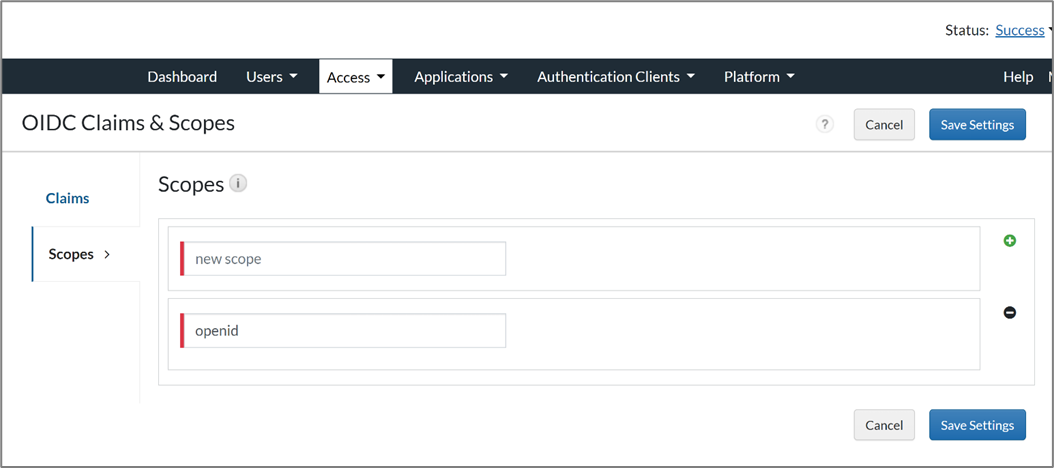
- Provide the scope as OpenID (scopes should be added in advance. See the Notes section).
- Click Save and Finish.
- Click Publish Changes.
Notes
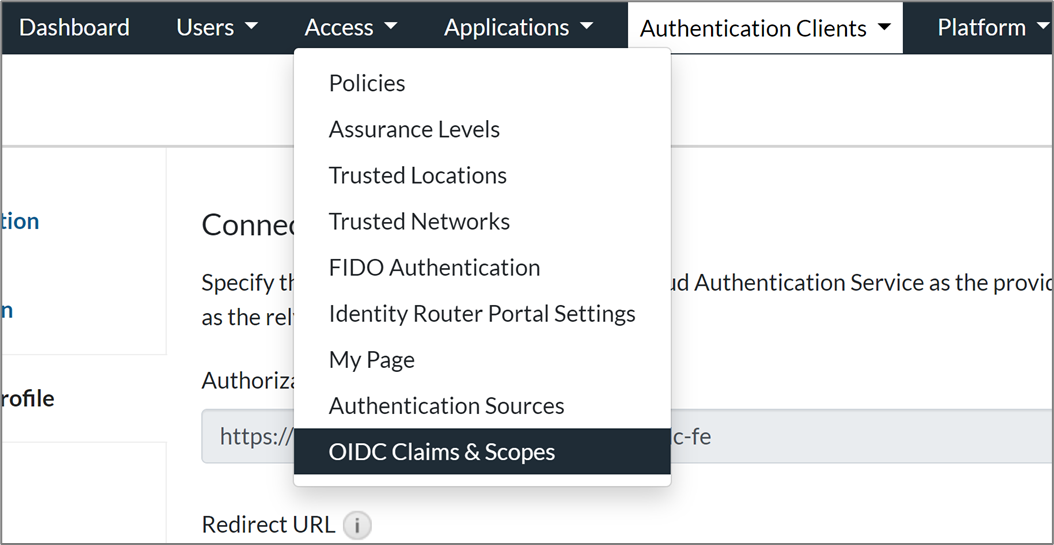
To add scopes, click Access > OIDC Claims & Scopes.
Configure Salesforce
Perform these steps to configure Salesforce.
Procedure
- Sign into Salesforce admin console. https://login.salesforce.com
- Click Switch to Lightning Experience if you are using Salesforce Classic.
- Click the gear icon in the upper-right corner and click Service Setup.
- In the left pane, click Identity > Auth Providers and in the right pane, click New.
- Perform the following steps:
- For the Provider Type, select OpenID Connect.
- Enter the Name for the provider.
- Enter the URL suffix, which is used in the client configuration URLs.
- For Consumer Key, use the Client ID from the RSA connector configuration.
- For Consumer Secret, use the Client Secret from the RSA connector configuration.
- For Authorize Endpoint URL, enter the Authorization Server Issuer URL from the RSA connector. Make sure that /auth is appended at the end.
- For Token Endpoint URL, enter the Authorization Server Issuer URL from the RSA connector. Make sure that /token is appended at the end.
- For User Endpoint URL, enter the Authorization Server Issuer URL from the RSA connector. Make sure that /userinfo is appended at the end.
- Click Automatically create a registration handler under Registration Handler.
- Search for the administrator in Execute Registration As.
- Click Save.
- Click the Registration Handler link and edit the file. This code can be changed according to the requirement.
Code Snippet
//TODO:This autogenerated class includes the basics for a Registration //Handler class. You will need to customize it to ensure it meets your needs and //the data provided by the third party. global class AutocreatedRegHandler1662762939351 implements Auth.RegistrationHandler{ global User createUser(Id portalId, Auth.UserData data){ //The user is authorized, so create their Salesforce user User u = new User(); String username = data.identifier; List<User> userList = [Select Id, Name, Email, UserName From User Where ( UserName =: username) AND isActive = true ]; if(userList != null && userList.size() > 0) { u = userList.get(0); } return u; } global void updateUser(Id userId, Id portalId, Auth.UserData data){ User u = new User(id=userId); update(u); } } - Copy the Callback URL and use it as the Redirect URL in the connector (in RSA).
- Click My Domain under Company Settings.
- Under Authentication Configuration, click edit and select the auth provider created.
- Click Save.
Return to the main page.



